
Copaste for Designers
Design is moving things between apps. Stop losing them on the way.
Screenshots, hex codes, reference images, microcopy — Copaste remembers everything you copy with full visual previews, so switching between Figma, your browser, and docs costs you nothing.
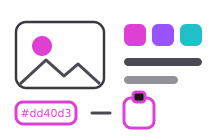
Sound familiar?
- You copied the perfect reference image, then copied a hex code — and the image is gone.
- Re-screenshotting the same component because you can't find the first one.
- Brand colors and UX copy pasted from a "brand-guidelines-final-v3" doc, again.
How Copaste fits your workflow
Image history & previews
Every screenshot and image you copy, visible at a glance. Find it by looking, not guessing.
Tags & favorites
Pin your brand palette, logo files, and boilerplate UX copy. One search, always current.
Text capture
Grab text from mockups, screenshots, or a client's PDF — even when it isn't selectable.
Files too
Copied files ride along in history — assets don't vanish between folders.
A day with Copaste
Handoff day with Copaste:
- Copy the final screens from Figma and the spacing notes from your doc.
- Pull the brand hex codes from favorites — no hunting through the guidelines file.
- Paste the whole set into the handoff doc from history, in order.
Frequently asked questions
- Does Copaste store images and files?
- Yes — texts, images, and files all land in your history, with detailed previews including size and the date copied. You find images by seeing them, not by guessing filenames.
- Does it work with Figma, Sketch, and Photoshop?
- Yes. Copaste works with the system clipboard, so anything you copy in any app — design tools included — is captured automatically.
- Can I keep brand assets permanently?
- Pin them as favorites. Favorites don't get buried by new copies, so your palette, logos, and standard copy are always one search away.
Ready to make it yours?
One-time purchase, lifetime access. No subscription, no account needed.
Buy now