
A Clipboard Manager for Students: The Setup That Saves Every Source
A clipboard manager for students keeps every quote, citation and lecture note searchable instead of lost. Here's the setup that ends re-finding the same source.
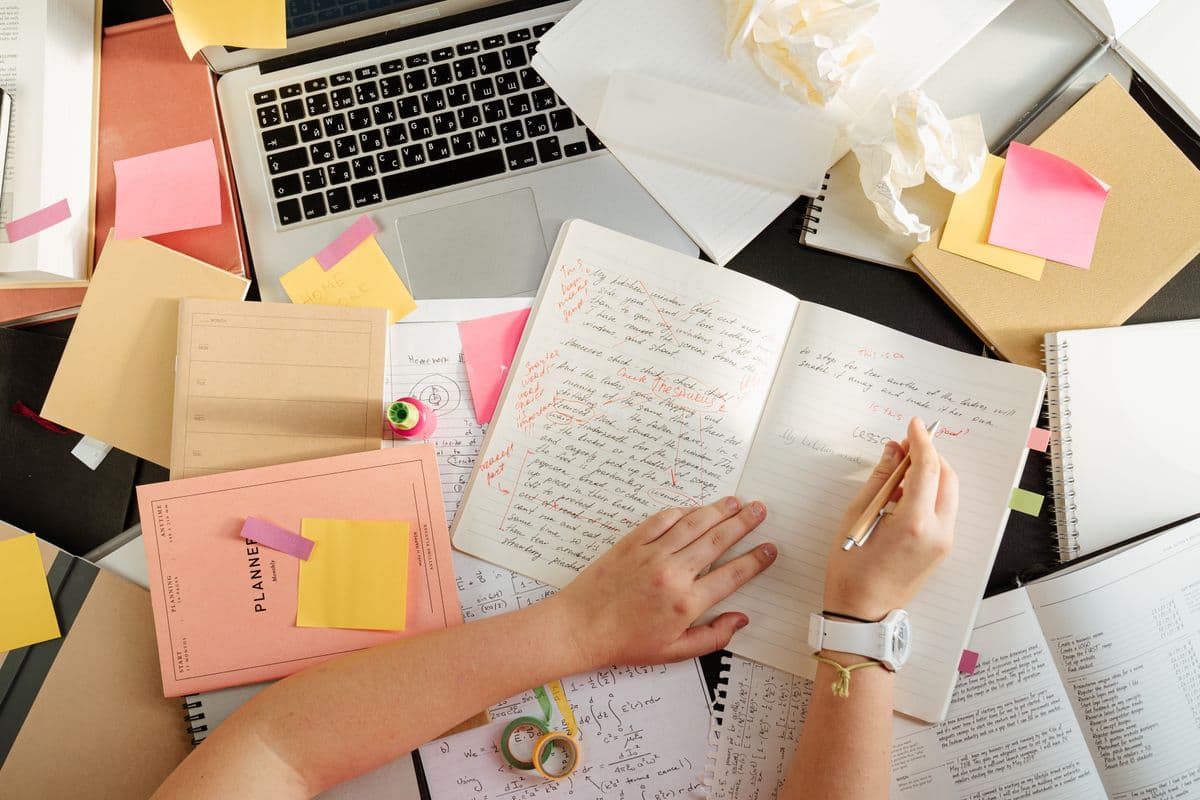
You find the perfect quote on page 42 of a PDF, copy it, and switch to your essay. On the way you copy the page number so you don't forget it — and the quote is gone. So you go back to the PDF, scroll to find the passage again, and copy it a second time. A clipboard manager for students exists to end exactly that loop: instead of one slot that forgets, you get a searchable history of every quote, citation, link and lecture note you've copied all term.
Studying is an unusually clipboard-heavy activity, and almost nobody notices. A single essay means shuttling text between a library database, four PDFs, a browser with eleven tabs open, a notes app, a citation generator and the document itself. The default clipboard carries one item at a time through all of that. Everything else you copied is simply overwritten.
What Actually Gets Lost
The frustrating part isn't the copying. It's the re-finding. Every time an item falls out of your clipboard, you pay the cost of locating it again:
- A quote you'd already picked out of a 300-page PDF
- The DOI or URL you needed for your bibliography
- A definition from a lecture slide you've since closed
- Your student ID, which three different portals keep asking for
- A paragraph you cut from your draft because it didn't fit — and now want back
That last one is the worst, because undo won't reach back far enough. The text existed, you had it, and now the only copy is gone.
The Built-In Options (and Where They Stop)
Both major platforms have added something here, and it's worth knowing what you already have.
Windows has had a real clipboard history for years. Press Win + V and you'll see your recent items, and you can pin the ones you use repeatedly. It's genuinely useful and costs nothing.
macOS 26 Tahoe added a clipboard history to Spotlight — press ⌘Space, then ⌘4. It's a welcome addition, but it's deliberately lightweight: items expire after roughly eight hours, there's no way to organise or tag anything, and it lives only on that Mac.
For a student, the eight-hour window is the sticking point. Research doesn't happen in a single sitting. You gather sources on Tuesday, outline on Thursday, and write on Sunday. A history that empties overnight has forgotten everything by the time you actually need it.
What a Clipboard Manager Adds for Studying
A dedicated clipboard manager keeps everything, makes it searchable, and lets you organise it. Concretely, that changes a few things:
Your research survives the week. Copy forty quotes across three study sessions and they're all still there when you sit down to write. Search for a word you remember from the passage and it surfaces, no matter which PDF it came from.
You can group by assignment. Tags and categories let you keep the sources for your history essay separate from your stats coursework, so you're not scrolling through an undifferentiated pile.
Pinned items stop the retyping. Your student number, your citation style header, your supervisor's email address, the referencing format your department insists on — pin them once and they're a keystroke away all year. Pinning the things you paste every day is the single highest-return habit here.
Images and screenshots are kept too. A cropped diagram from a lecture slide, a graph you need to reference, a screenshot of feedback — these live in the same history as your text, fully previewable.
Text capture handles locked PDFs. Plenty of academic PDFs and scanned readings won't let you select text at all. Copaste's screen-capture shortcut (⇧⌘2) pulls text out of anything you can see, which covers scanned journal articles and slide images. There's more on that in how to copy text from an image or PDF.
A Workflow That Actually Holds Up
Here's the setup worth copying, whatever tool you end up using:
- Turn the history on and leave it on. Don't clear it between sessions — the whole value is that last Tuesday's reading is still there on Sunday.
- Tag as you gather. When you're in research mode, label items by assignment. It takes a second and saves ten minutes later.
- Copy the citation with the quote. Grab the quote, then immediately grab the page number or DOI. With a history, both survive — which is the entire reason bibliographies stop being painful.
- Pin your constants. Student ID, email signature, course codes, the header block every submission needs.
- Learn one shortcut. Open the history, arrow to the item, hit Enter. If you have to reach for the mouse, you won't use it.
One Thing to Be Careful About
A clipboard manager sees everything you copy — including passwords and anything sensitive you paste into a portal. That's a real consideration, not a footnote. Look for a tool that stores history locally rather than syncing it to someone else's server, and that lets you exclude password fields. We wrote about the broader question in is your clipboard secure. Copaste keeps your history on your own machine by default.
The Short Version
You are going to copy and paste thousands of times this term. Doing it with a clipboard that remembers exactly one thing means paying a small re-finding tax over and over, usually at the least convenient moment.
The fix takes about thirty seconds to set up. On Windows, start by pressing Win + V today. On a Mac, try ⌘Space → ⌘4 and see whether the eight-hour limit bothers you. If it does — or if you want your sources organised, searchable and still there next week — Copaste is built for exactly that.
Stop losing what you copy.
Copaste remembers everything — texts, images, files, passwords. Local-only, keyboard-first, always instant.