
How to Copy Text From an Image or PDF
How to copy text from an image on Mac, Windows, iPhone and Android, plus scanned PDFs — the built-in tools, their limits, and how to keep every capture.
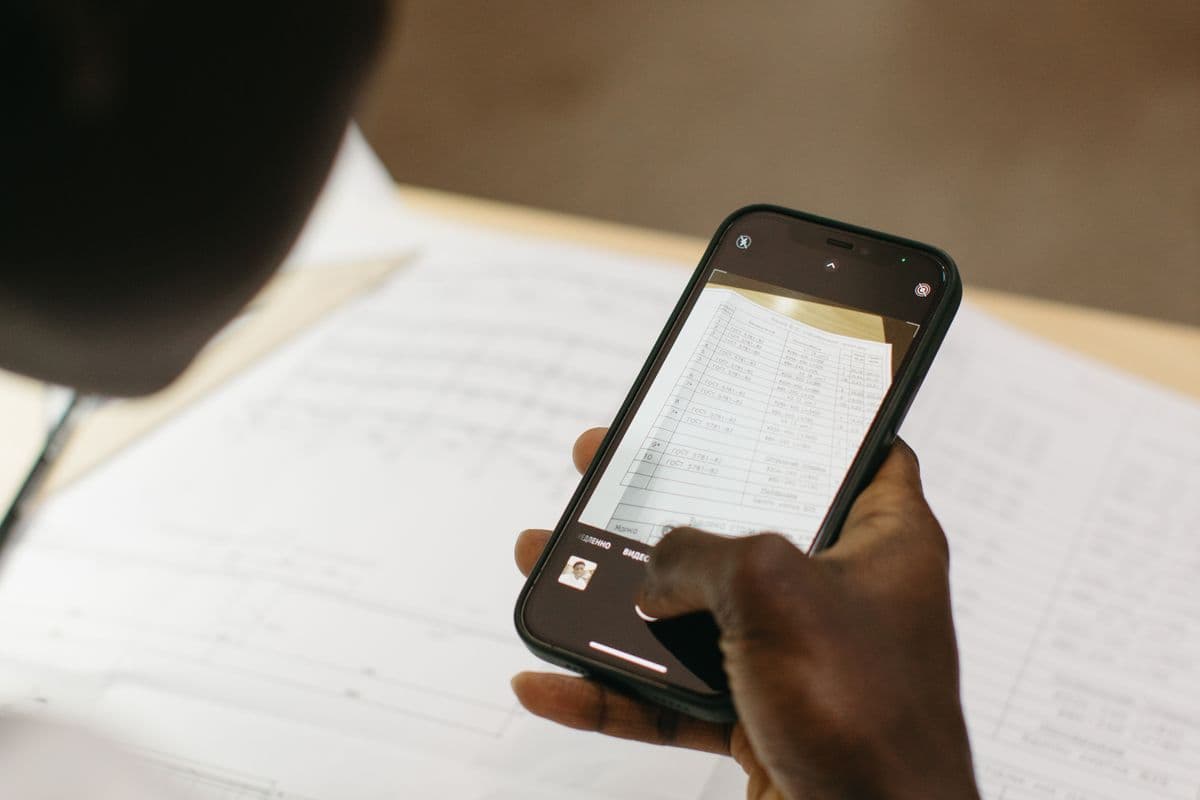
A colleague sends you a screenshot of an error message. A client emails a scanned contract. A slide deck has the exact paragraph you need, flattened into a PNG. You can see the words perfectly well — you just can't select them.
Retyping is the default answer, and it's a bad one. It's slow, and every transcription is a chance to fat-finger a port number or an order ID. The good news: learning how to copy text from an image takes about a minute, and every major operating system now does it for free. Here's how, platform by platform, plus what to do when the built-in tools fall short.
How to Copy Text From an Image on a Mac
macOS has had Live Text built in since Monterey, and it's still there in macOS 26 Tahoe. It works anywhere the system renders an image — Preview, Quick Look, Photos, Safari, Messages, even Finder thumbnails.
- Open the image (or just select the file in Finder and press Space for Quick Look).
- Hover over the text. Your cursor turns from an arrow into a text-selection I-beam.
- Drag to select, then press ⌘C.
If nothing highlights, click the Live Text button that appears in the corner of the image first. You can also right-click a selection and choose Copy — or, when the text is a phone number or address, act on it directly.
A few things worth knowing:
- It works on PDFs too. Open a scanned PDF in Preview and try selecting a line. If Live Text recognizes it, you get real, copyable text out of what is technically a picture of a page.
- It's per-image, not per-screen. Live Text works on image content, so it won't help you grab text out of a video frame, a game, or an app that draws its own text.
- Accuracy depends on the source. A crisp screenshot is near-perfect. A photo of a page at an angle, in dim light, will drop characters.
How to Copy Text From an Image on Windows
Windows 11 handles this through the Snipping Tool:
- Press Win + Shift + S and capture the region containing the text (or open an existing image in Snipping Tool).
- Click Text Actions in the toolbar.
- Choose Copy all text, or drag to select just the part you want.
Snipping Tool can also redact detected emails and phone numbers before you copy — handy when you're pasting a screenshot into a ticket.
If you want something faster, Microsoft's free PowerToys includes Text Extractor: press Win + Shift + T, drag a box over any part of the screen, and the text lands on your clipboard immediately. No file, no window, no extra click. It works on anything on screen, including app UI that Snipping Tool's image-first flow makes awkward.
How to Copy Text From an Image on iPhone and Android
On iPhone and iPad, Live Text works the same way it does on the Mac. Open a photo, press and hold on the text, and drag the selection handles — or tap the Live Text icon in the bottom-right corner to select everything at once. It also works live in the Camera app, so you can copy text off a whiteboard or a book without taking a picture at all.
On Android, Google Lens is the equivalent. Open a photo in Google Photos, tap Lens, then Text, and select what you need. In the Recents app switcher you can also select text straight off a card.
What About Scanned PDFs That Won't Cooperate?
Some scanned PDFs are stubborn — old faxes, low-DPI scans, documents in a language your OS doesn't recognize well. Two reliable fallbacks:
- Google Drive. Upload the PDF or image, right-click it, and choose Open with → Google Docs. Drive runs OCR and gives you a document with the text extracted (formatting will be rough, but the words are there).
- Screenshot the page and re-run OCR on the screenshot. Sounds silly, works often. Rendering the page at full zoom gives the recognizer a cleaner, higher-contrast image than the embedded scan.
The Part Everyone Skips: Keeping What You Captured
Here's the failure mode that turns a one-minute task into a ten-minute one. You extract the text, paste it where it needs to go, copy something else — and then realize you need that first block again. The screenshot is still in your Downloads folder somewhere, and you get to do the whole thing over.
Your clipboard holds exactly one item. Text you pulled out of an image is usually text you couldn't easily get at in the first place, which makes it precisely the kind of thing you don't want to lose. A clipboard manager fixes that: every capture stays in your history, searchable by the words inside it.
Copaste is built around that idea. Press ⇧⌘2 and drag a box over anything on screen — a screenshot, a PDF, a locked web page, a video still — and the text is captured and dropped straight into your clipboard history. From there you can:
- Search it later by any word it contains, days after the fact
- Pin the ones you reuse, like a license key or a server address off a config screenshot
- Paste it as plain text, so the formatting doesn't fight your document
- Keep the original image too, since Copaste stores images alongside text
It also means the capture and the retrieval live in one place, instead of a screenshot folder, an OCR tool and a paste buffer that don't know about each other. If you're not sure what your Mac already keeps, how to see your clipboard history on Mac covers the built-in options and where they stop.
Getting Better Results From Any OCR Tool
Whichever tool you use, recognition quality comes down to the image you feed it:
- Zoom in before you capture. More pixels per character beats a wide shot every time.
- Straighten the page. Text recognition handles slight skew, not a 30-degree tilt.
- Avoid glare and shadows. A phone shadow across the middle of a page eats a whole line.
- Check ambiguous characters.
0/O,1/l/Iand5/Sare the usual suspects — proofread anything you're about to paste into a terminal or a payment field. - Don't trust it blindly for code. Indentation and special characters are where OCR is weakest. If it's going into a compiler, read it once.
The Short Version
Every platform can do this now, and none of them charge for it. On a Mac, hover and select with Live Text. On Windows, use Snipping Tool's Text Actions or PowerToys' Win + Shift + T. On a phone, Live Text or Google Lens. For a scanned PDF that fights back, run it through Google Drive.
Then give the result somewhere to live. Getting text out of an image is the easy half — keeping it where you can find it again is what saves you the second and third trip.
Stop losing what you copy.
Copaste remembers everything — texts, images, files, passwords. Local-only, keyboard-first, always instant.