
Clipboard History on Windows: How to Copy Multiple Items
How to turn on and use clipboard history on Windows to copy multiple items at once, plus how to keep, search, and organize what you copy long-term.
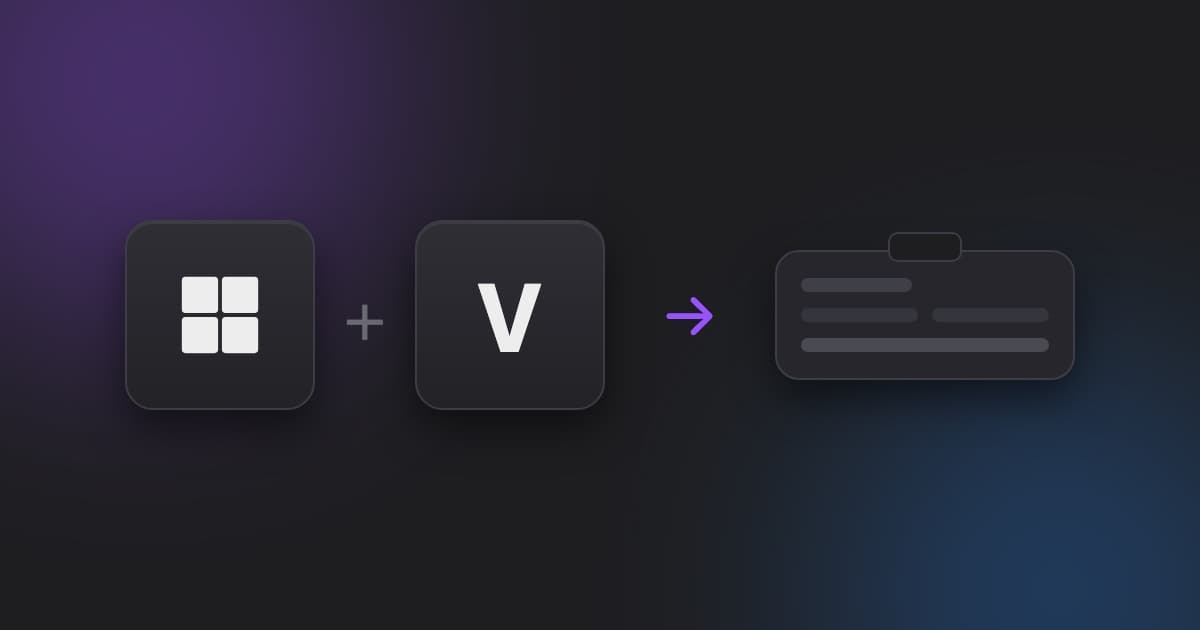
Copy one thing on Windows, copy a second thing, and the first one is gone — unless you know about clipboard history. Windows has had a built-in clipboard history feature for years, and most people have never turned it on. Here's how to enable it, use it to copy multiple items at once, and where it still falls short.
What Clipboard History on Windows Actually Does
By default, Windows works like every clipboard has worked since the 1980s: one slot, one item, overwritten the instant you copy something new. Clipboard history changes that by keeping a running list of everything you've recently copied — text, links, and images — so you can paste from any of them, not just the last one.
It's a genuinely useful feature. It's also off by default, which is why most Windows users have never seen it.
How to Turn On Clipboard History
- Open Settings.
- Go to System → Clipboard.
- Toggle Clipboard history to on.
That's it — no restart needed. From this point on, Windows starts saving what you copy instead of discarding it immediately. If you flip the toggle and Win+V still opens an empty panel, clipboard history not working walks through the usual causes.
How to Use Clipboard History to Copy Multiple Items
Once it's turned on, copying multiple items and pasting from any of them is simple:
- Copy several things in a row — a line from an email, a link, a snippet of code. Each one gets added to the history instead of replacing the last.
- When you're ready to paste, press Windows key + V instead of Ctrl+V.
- A panel pops up showing your recent clips. Click any item to paste it.
- Hover over an item and click the pin icon to keep it in history permanently, even after a reboot — otherwise older items get cleared out over time.
This is the core trick for copying multiple items at once on Windows: copy everything you need first, then open the Win+V panel and paste each one where it belongs, instead of the old copy-paste-copy-paste dance.
The Limits of the Built-In Version
Windows Clipboard History is a solid starting point, but it's built for quick, short-term use, not for managing a real workflow:
- Limited capacity. It holds a capped number of recent items — once you hit the limit, the oldest unpinned ones drop off.
- No search. If you copied something an hour ago and forgot the exact wording, you're scrolling through the panel hoping to spot it.
- No organization. Everything sits in one flat list. There's no way to tag a snippet as "code," a link as "reference," or group related copies together.
- No file support. It handles text and small images, but copying files between folders doesn't show up in the history at all.
- Not synced anywhere. What you copy on your Windows PC stays on your Windows PC — there's no way to reach it from a browser extension or another device. If you work across both platforms, sharing your clipboard between a Mac and a Windows PC covers the options and their trade-offs.
For a quick copy-paste session, that's fine. For developers juggling API keys and code snippets, writers moving between drafts and research, or anyone who copies dozens of things a day, it runs out of runway fast. We wrote more about this general problem — and how a dedicated tool solves it — in why your clipboard is holding you back.
When You Need More Than the Built-In History
If you keep hitting the same wall — can't find something you copied yesterday, can't pin more than a handful of items, want your clipboard to follow you into the browser — a dedicated clipboard manager is the next step.
Copaste works the same way Windows Clipboard History does at its core, but without the limits:
- Unlimited, searchable history. Every text snippet, link, and image you've copied stays available and searchable, not just the last handful.
- Tags and categories. Label clips as code, prompts, or reference material so you can filter instead of scroll.
- Image and file support. Screenshots, design assets, and copied files stay in your history alongside text.
- Favorites. Pin the things you paste constantly — a signature, a support reply, a boilerplate snippet — so they're always one keystroke away.
- Chrome extension sync (beta) that keeps your clipboard consistent between desktop and browser, something the native Windows history can't do.
The Bottom Line
Windows Clipboard History (Win+V) is worth turning on today — it's free, built-in, and immediately useful for copying multiple items instead of just one. But if you're copying and pasting for a living, its short memory, flat list, and lack of search will start to show. That's the gap a full clipboard manager like Copaste is built to close.
Stop losing what you copy.
Copaste remembers everything — texts, images, files, passwords. Local-only, keyboard-first, always instant.